Turn ideas and references into AI video and image shots
Explore AI video and image examples, then turn text, portraits, products, and references into reviewable creative shots with focused 智擎云 workflows.
Last updated: 2026-08-22
AI Video and Image Examples
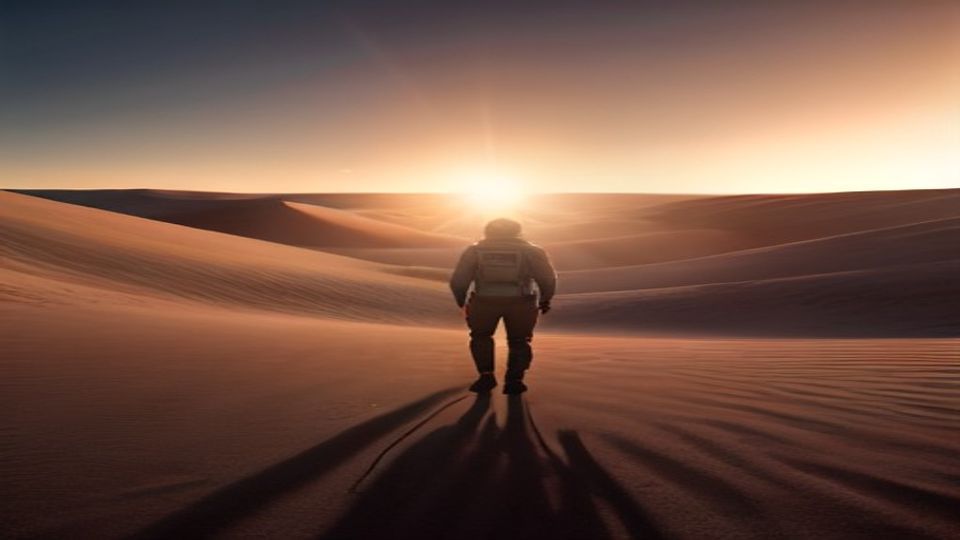
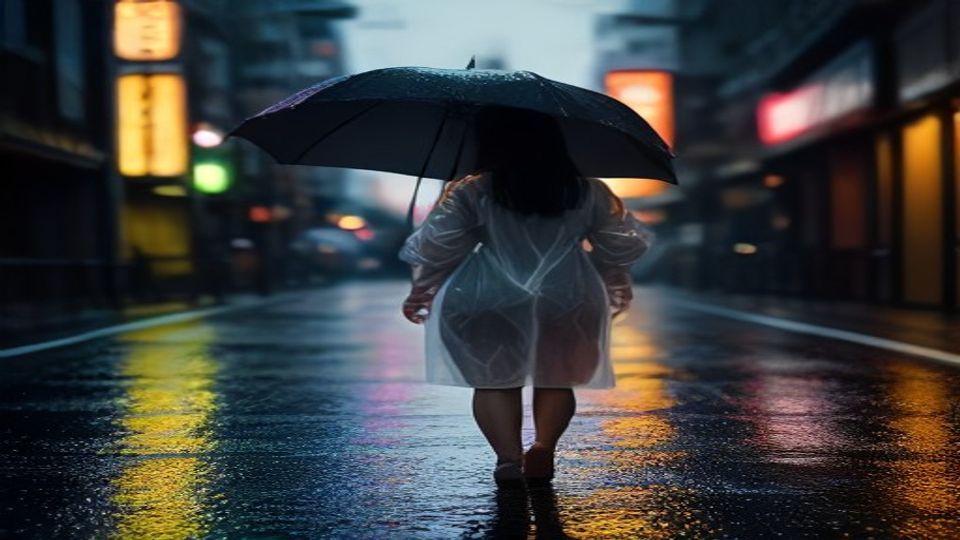
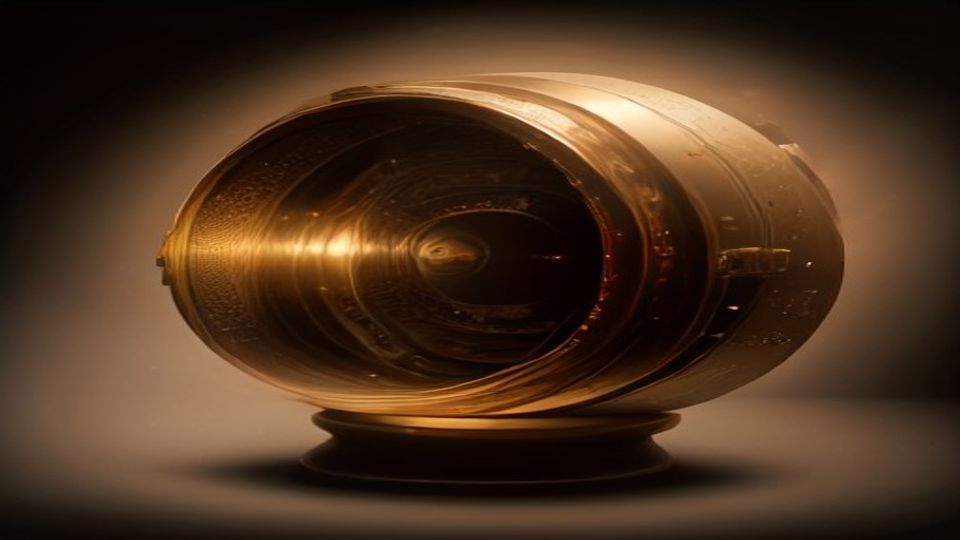
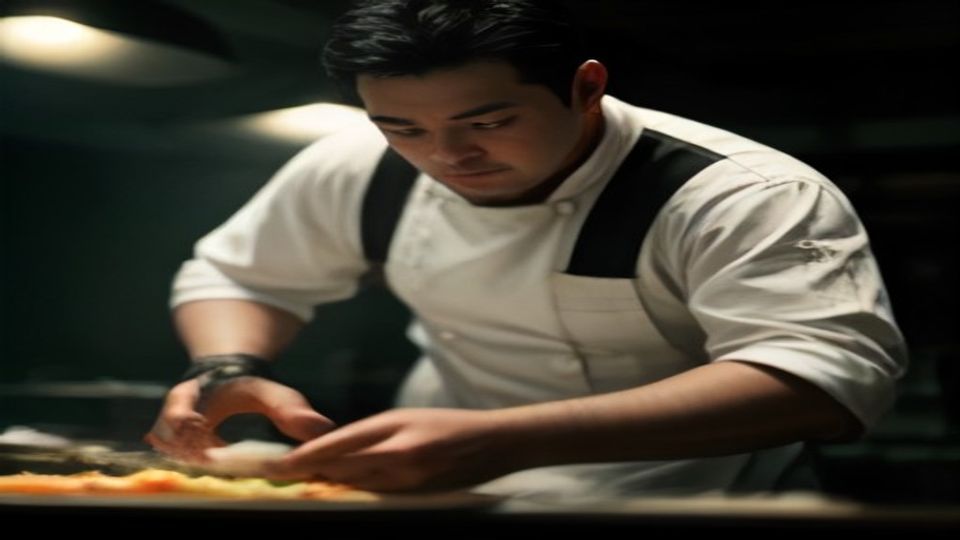
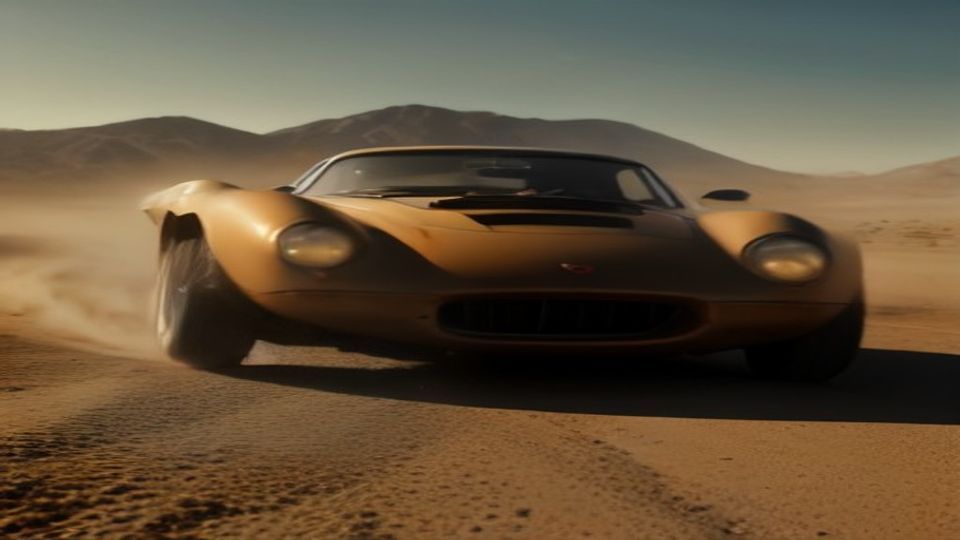
Bring a scene, portrait, product photo, or set of references. 智擎云 gives each starting point a focused workflow for creating a reviewable social, product, or previsualization shot—without managing provider API keys.
Explore the examples
Use the gallery to compare visual directions before choosing a workflow. The gallery currently contains several image examples and one example labeled as video. It is not a verified customer case-study library, and asset-level prompts, settings, user attribution, and edit history are not available.
Start with the material you already have
Turn a scene description into a shot
With Text to Video, describe the subject, setting, action, framing, lighting, and intended camera direction. Use the generated shot as a first creative pass: review it, refine the prompt, and create variations for different hooks or formats.
The model interprets your direction, so motion, composition, and sound can vary between generations.
Bring a portrait or product image to life
Image to Video gives a portrait, product photo, illustration, or first-frame concept motion and a new setting. Use it to explore portrait-led social concepts, product b-roll, lifestyle scenes, and campaign variations from an image you already have.
For identity-sensitive or product-accurate work, review faces, logos, text, proportions, reflections, and material details before publishing.
Only use a person's image when you have their permission. Review the Real Person Reference Policy before publishing identity-sensitive work.
Give the model more visual context
Reference to Video accepts up to 30 reference images and 10 reference video clips on Seedance 2.5, the current default model. Per-request limits differ by model - the Seedance 2.0 models accept up to 9 images and 3 clips - so check the limit for the model you select. Combine character, product, environment, style, or motion references when one source cannot communicate the whole brief.
References help guide appearance and motion; the model still interprets them, so separate outputs can differ.
Shape the shot before you finish it
Choose a task-specific workflow for the part of the shot you want to explore:
| Workflow | What you can do | | ----------------------------------------- | -------------------------------------------------------------------------------- | | Video Extend | Explore the next beat of an existing clip. | | Video Transition | Create a visual bridge between two supplied clips or moments. | | Motion Control | Guide the intended camera movement with supported controls and prompts. | | First & Last Frames | Set opening and closing compositions, then generate the motion between them. | | Multi-Shot | Generate separate shots for a sequence you can review and assemble in an editor. |
智擎云 creates reviewable generated shots, not a finished editing timeline. Multi-shot outputs remain separate clips, and continuity should be reviewed before assembly.
Create with clear credit and usage rules
Before generation, 智擎云 shows the maximum credit quote for the selected model, duration, resolution, ratio, and input type. It reserves that maximum, settles actual provider usage at or below the reservation, and restores the reserved credits after a terminal failure or provider rejection.
Outputs made with a paid subscription or purchased credit pack are eligible for commercial use under the Commercial Use Policy. Outputs made with sign-up or promotional credits are for evaluation or personal use.
→ Compare plans and credit packs
Current creative options
| Option | Available configuration | | ---------------- | ---------------------------------------------------------------------------------------------------------------------------- | | Models | Seedance 2.5 by default, plus Seedance 2.0, 2.0 Fast, and 2.0 Mini in supported video workflows. | | Resolution | Options can include up to 4K, depending on the selected model and workflow. | | Aspect ratios | 16:9, 9:16, 1:1, 4:3, 3:4, and 21:9 where the selected workflow exposes them. | | Audio | Supported workflows can return model-native synchronized audio. | | Reference inputs | Reference to Video accepts up to 30 images and 10 video clips on Seedance 2.5; the Seedance 2.0 models accept up to 9 and 3. |
Create the next shot
Start with what you already have:
- A scene in mind → use Text to Video.
- A portrait, product, or first frame → use Image to Video.
- A fuller visual brief → use Reference to Video.
Choose the workflow, review the maximum credit quote, and create a shot you can refine or finish in your editor.